Notice: Apple Pay is temporarily unavailable. We are only able to accept Zelle and Cashapp payments at this time. We apologize for any inconvenience and are working to resolve this quickly.
We need a PDF of your Amazon cart so we know exactly what to grab. Pick the device you're using and follow the steps. It takes about 30 seconds.
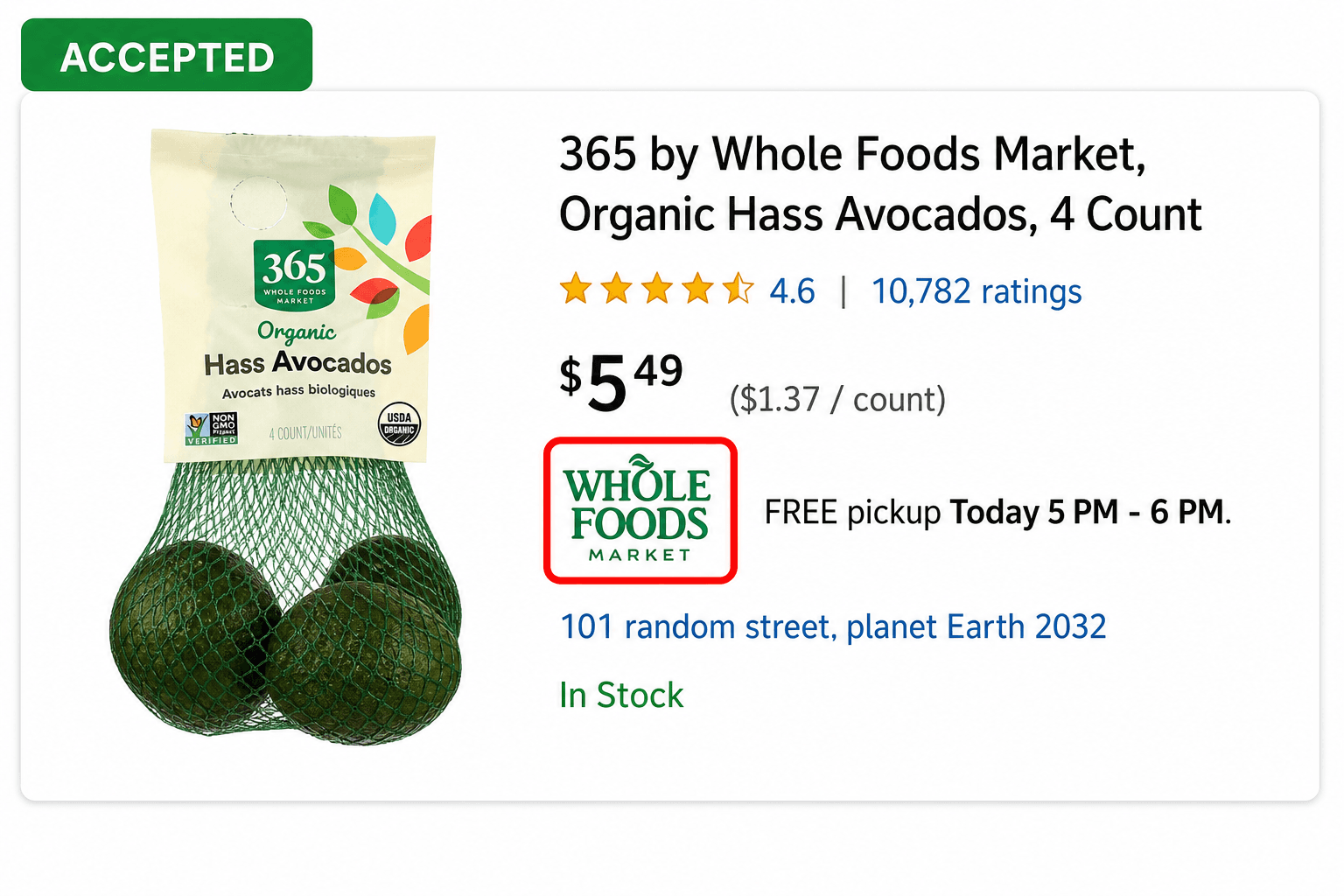
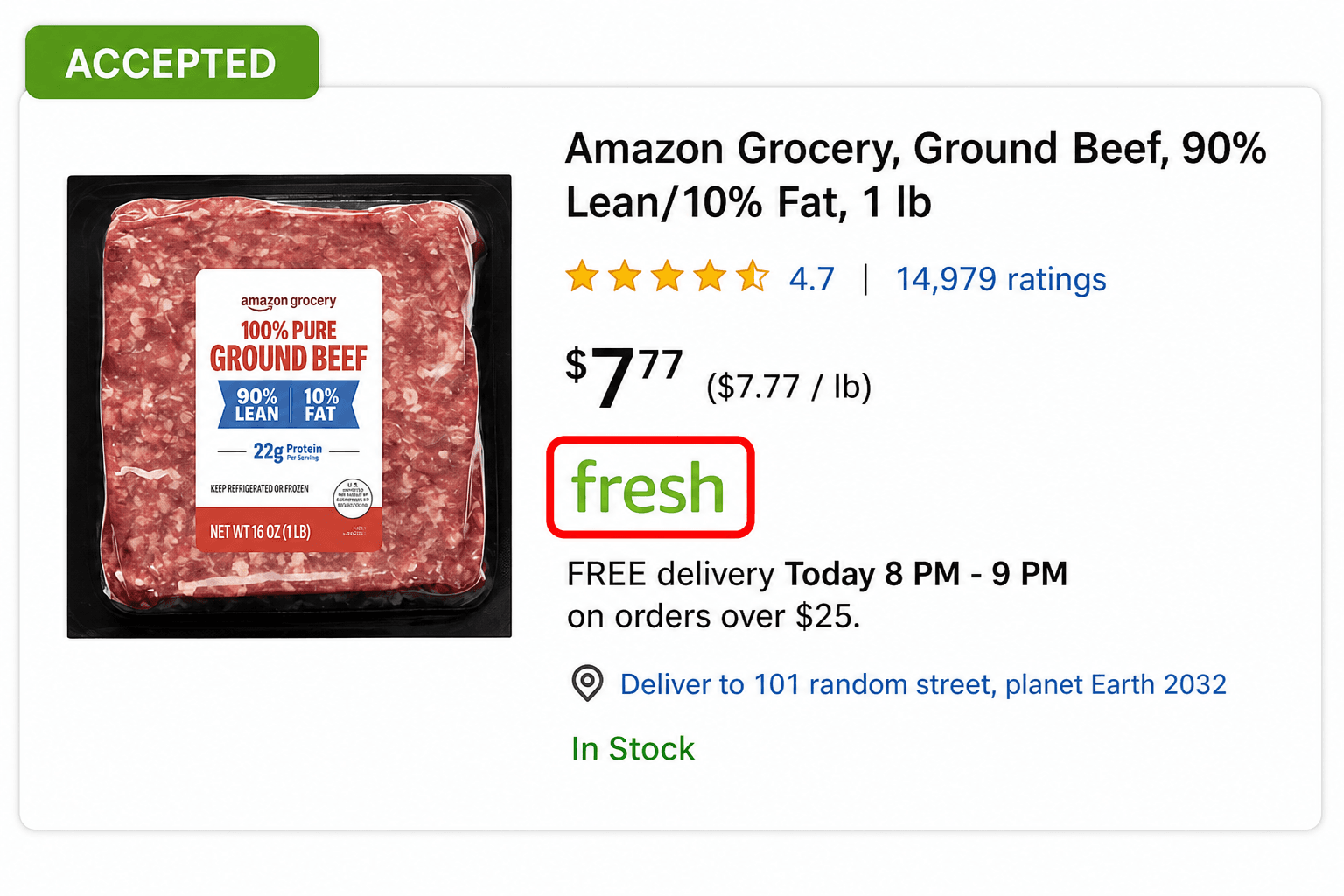
Examples of carts we accept
The store tag (circled) should read Whole Foods Market or fresh and any other branded store. As long as you see one of these, the cart is good to go.
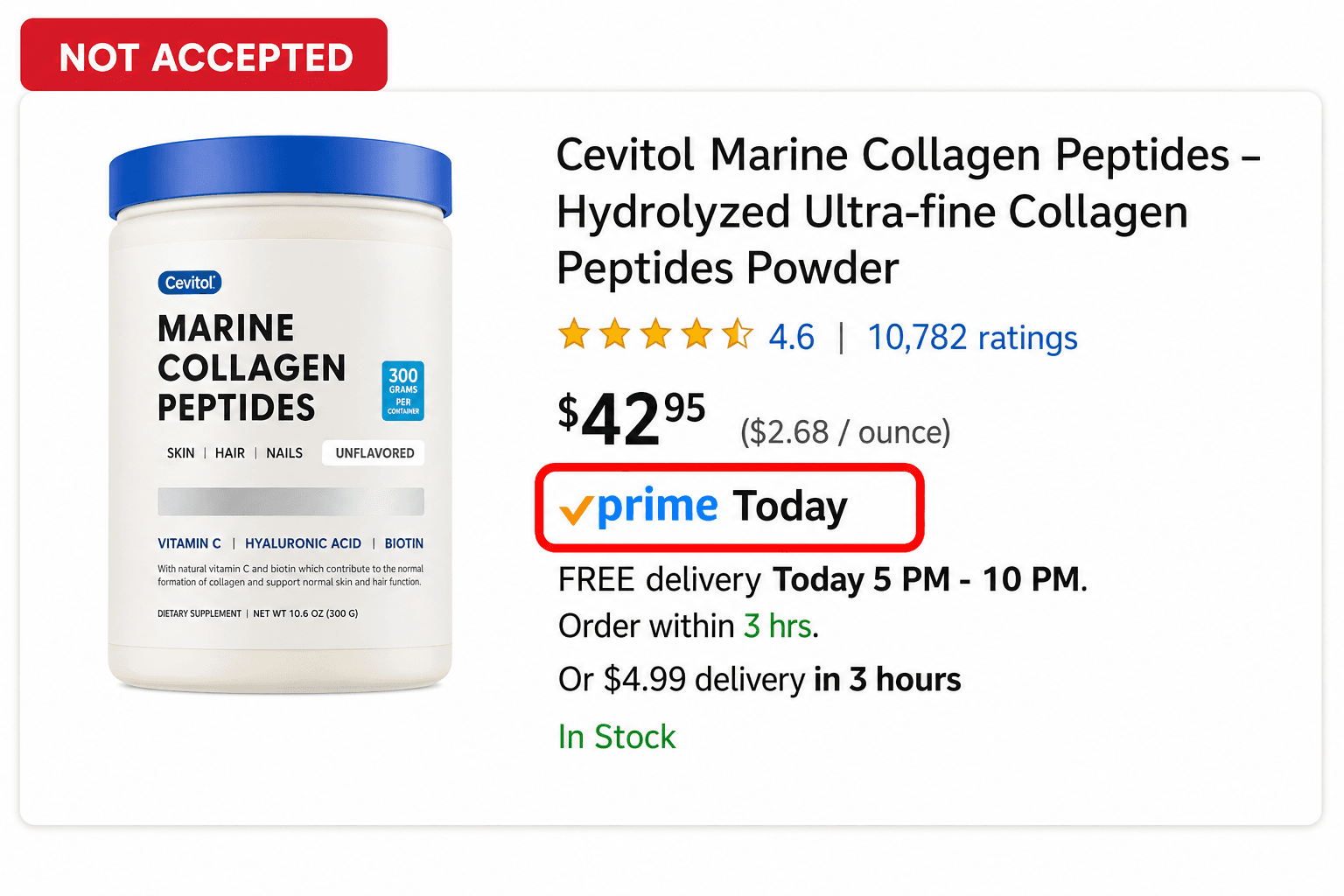
We can't shop Same-Day Store carts
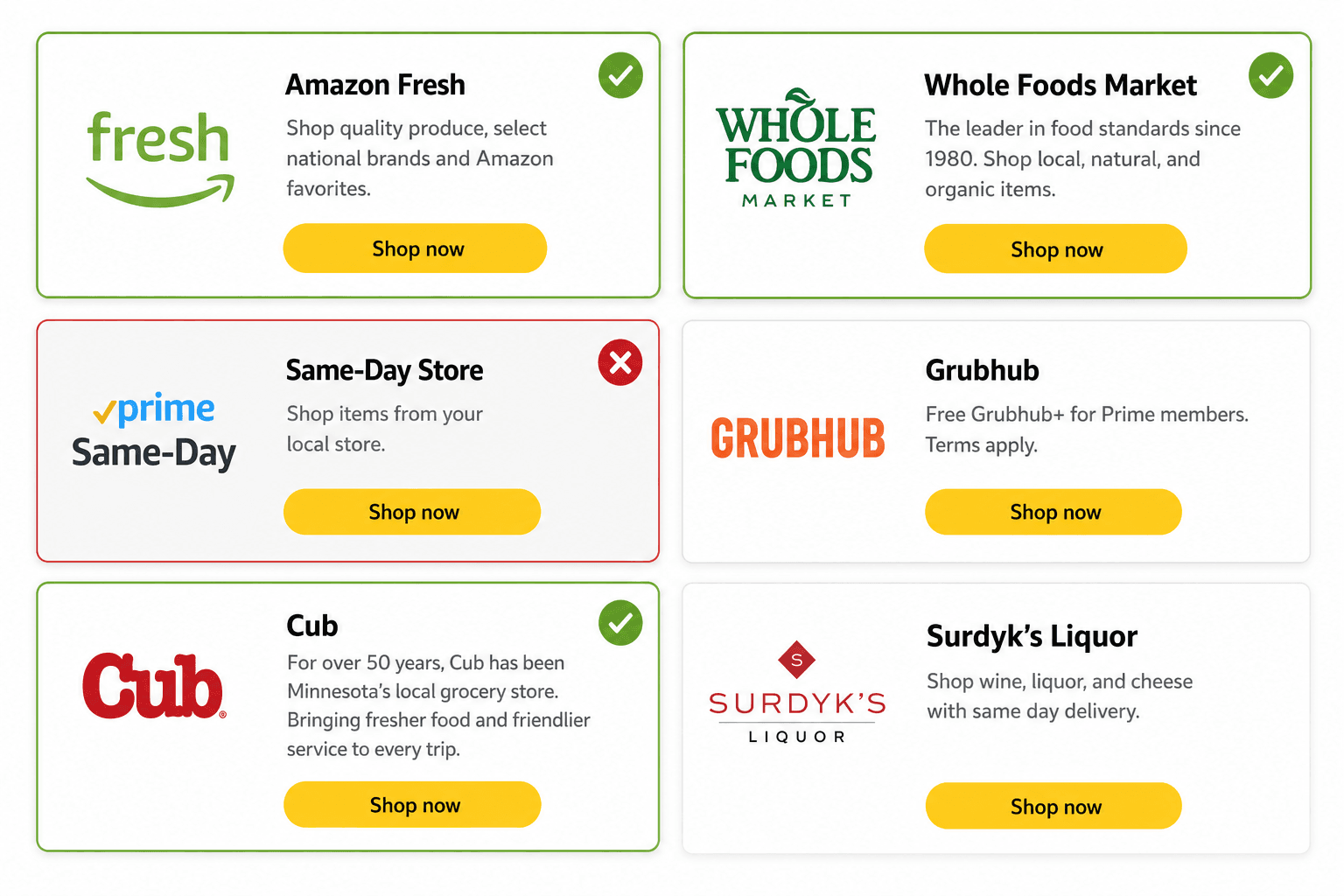
Build your cart in Amazon Fresh, Whole Foods Market, or Cub. Basically any store except the Same-Day Store. If your cart items show the blue prime “Today” tag, that's the Same-Day Store and we can't fulfill it.
Can't make a PDF?
No worries. You can upload screenshots of your cart instead and we'll convert them into a PDF for you.
We can't fulfill an order without all three. Missing any of these will delay your order.
Open your Amazon checkout page (the one with the yellow "Place your order" button), then follow these steps.
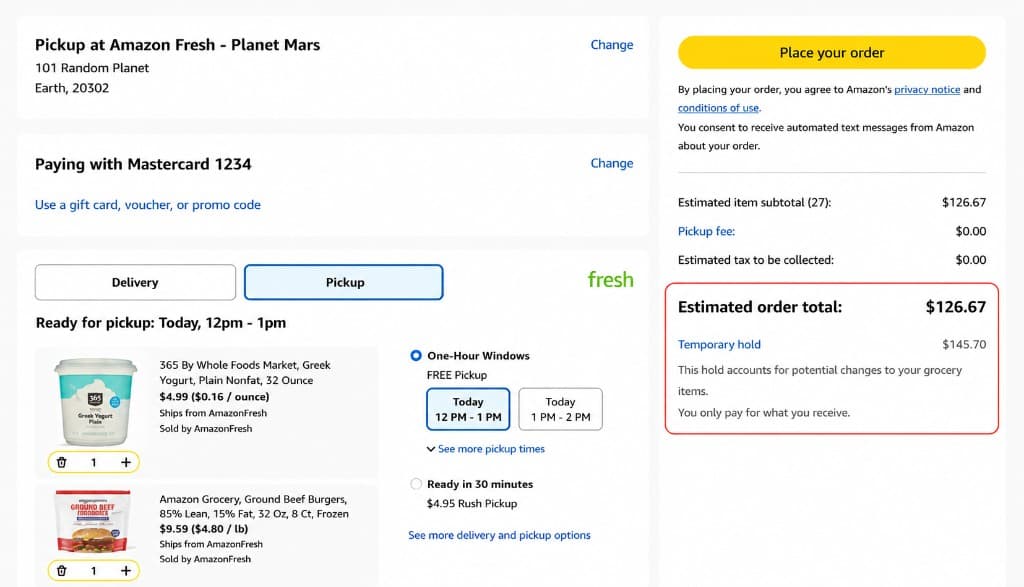
Scroll so the Estimated order total and Temporary hold are both on screen.
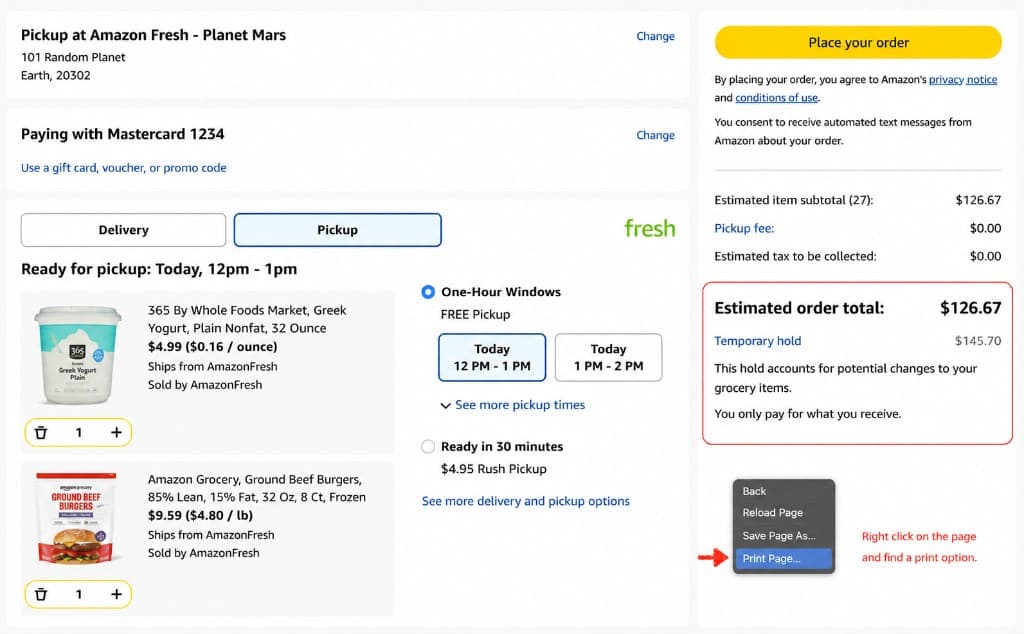
Right-click anywhere on the page and find the print option.
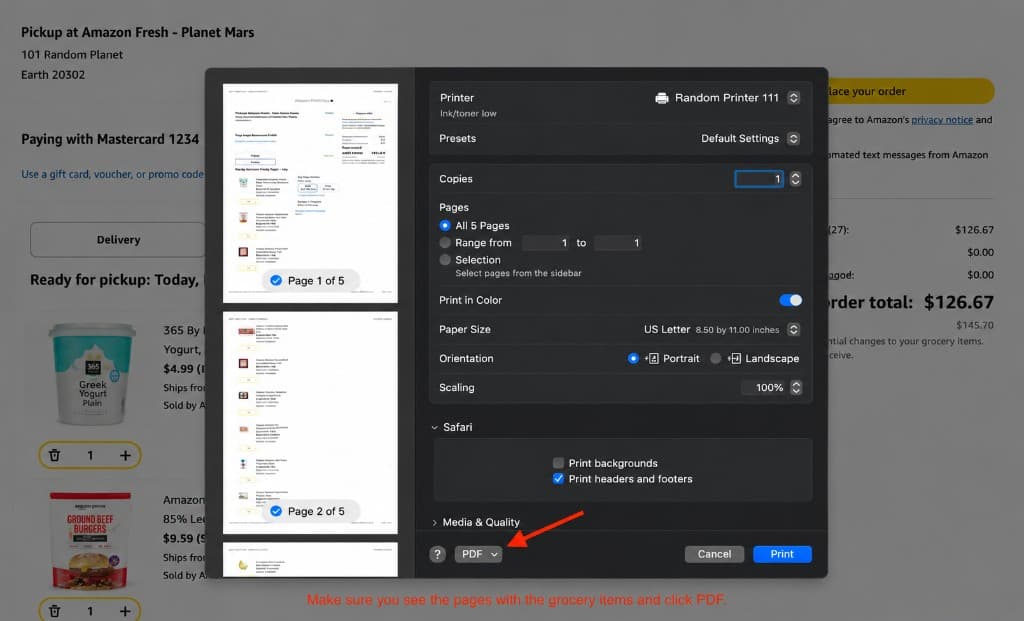
Make sure you see the pages with the grocery items and click PDF at the bottom-left.
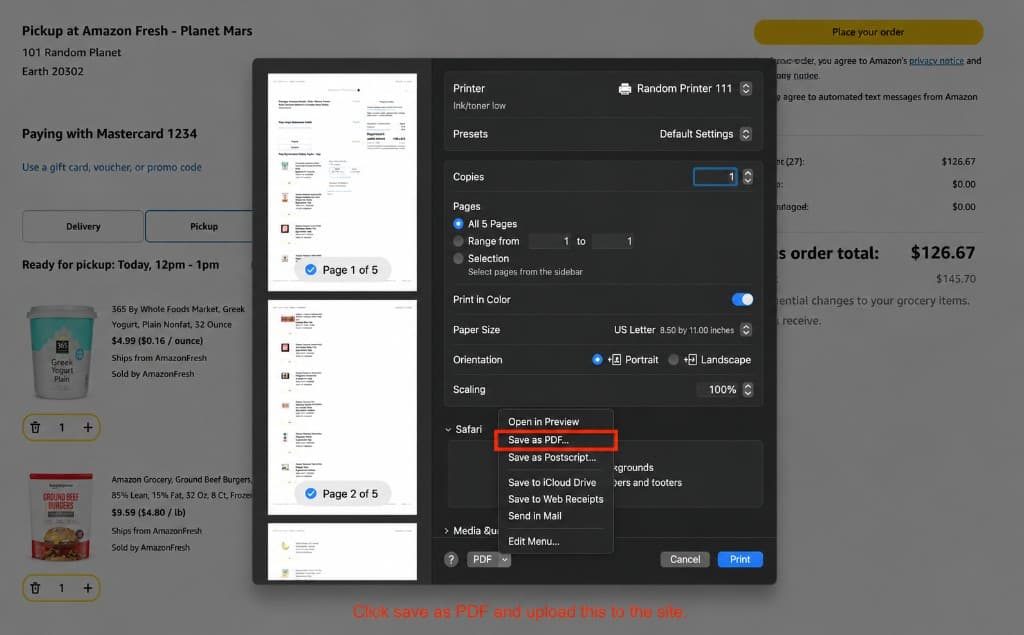
Click Save as PDF, choose a location, and upload that file in your order.
iOS Safari
Android Chrome
Windows PC
If your cart has subscriptions, gift cards, or non-grocery items, remove them before exporting.
The estimated order total and temporary hold must both be visible. If they're hidden, your PDF won't pass review.
If you change your cart, re-export a fresh PDF before uploading.
